
Skip to content

CSV import & export

Import Event Guest Lists From Excel or CSV

Bring your spreadsheet. Eventovalley does the clean-up.

Most guest lists start in a spreadsheet. Upload the CSV and Eventovalley recognises common column names such as name, email, mobile, company and designation, cleans up phone numbers and skips people already registered, then gives every new guest a QR pass.

Why it matters

Why teams use CSV import & export in Eventovalley

Smart column matching

Headers such as "Mobile No", "WhatsApp number" or "Contact" are recognised as the phone column automatically.

Phone clean-up

Numbers with spaces, dashes, leading zeros or country codes are normalised to one format.

Duplicates skipped

Guests whose email is already registered for the event are skipped and reported.

Clear warnings

Rows with missing names or numbers that look wrong are listed so you can fix them.

Automatic invitations

Imported guests can receive their invitation and QR pass straight away.

One-click export

Export the whole list or any filtered selection to CSV for reporting or other tools.

How it works

Up and running in minutes

  1. 1

    Prepare your sheet

    Export your list from Excel or Google Sheets as a CSV file with a header row.

  2. 2

    Upload to the event

    Choose Import CSV in the event's guest list and select the file.

  3. 3

    Review the result

    See how many guests were added, which were duplicates and any rows that need attention.

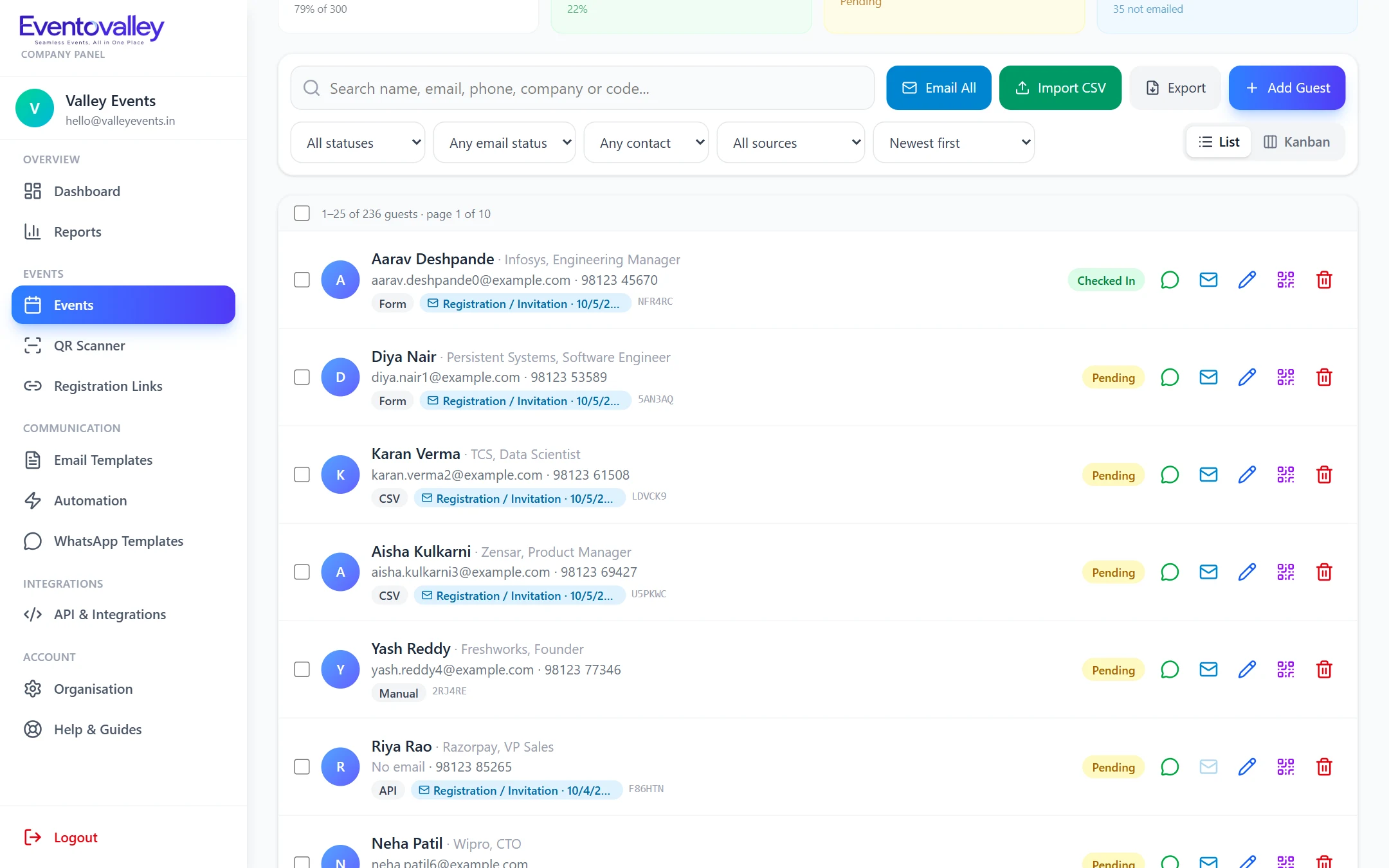
Imported guests in the guest list with source labels

Export exactly what you need

Every export respects the filters you have applied, so you can export only checked-in guests, only guests from a registration source, or a hand-picked selection.

  • Attendance lists after the event
  • Lists for badge printing or catering
  • Selected guests only

FAQ

Questions about CSV import & export

Which file format do I need to import guests?

A CSV file with a header row. Save your Excel or Google Sheets file as CSV, then upload it to the event.

What columns are required?

Only a name column is required. Email, phone, company and designation are imported when present.

Will importing the same file twice create duplicates?

No. Guests whose email is already registered for the event are skipped and counted as duplicates.

Seamless Events, All in One Place

Start using CSV import & export today.

Create your account, add your first event and start sending QR passes in minutes.